Author

Francis Ndungu
On this Page
How to Install Node.js and NPM on Ubuntu 26.04
Published: Last updated:
Introduction
Node.js is a JavaScript runtime built on Chrome's V8 engine that allows developers to run JavaScript code outside a web browser. This open-source, cross-platform environment excels at building fast, scalable network applications such as web servers, API backends, and real-time services. NPM (Node Package Manager) accompanies Node.js and provides access to over a million reusable code packages, making dependency management straightforward for JavaScript projects. Together, Node.js and NPM form the foundation for modern full-stack and backend JavaScript development.
This tutorial teaches you how to install Node.js version 24.x and NPM on Ubuntu 26.04 using the official NodeSource repository.
Prerequisites
Before you begin:
- Purchase an Ubuntu 26.04 VPS (Virtual Private Server) . If you don't have an Ubuntu VPS, sign up with Vultr and get upto $300 worth of free credit to test the Vultr platform.
-
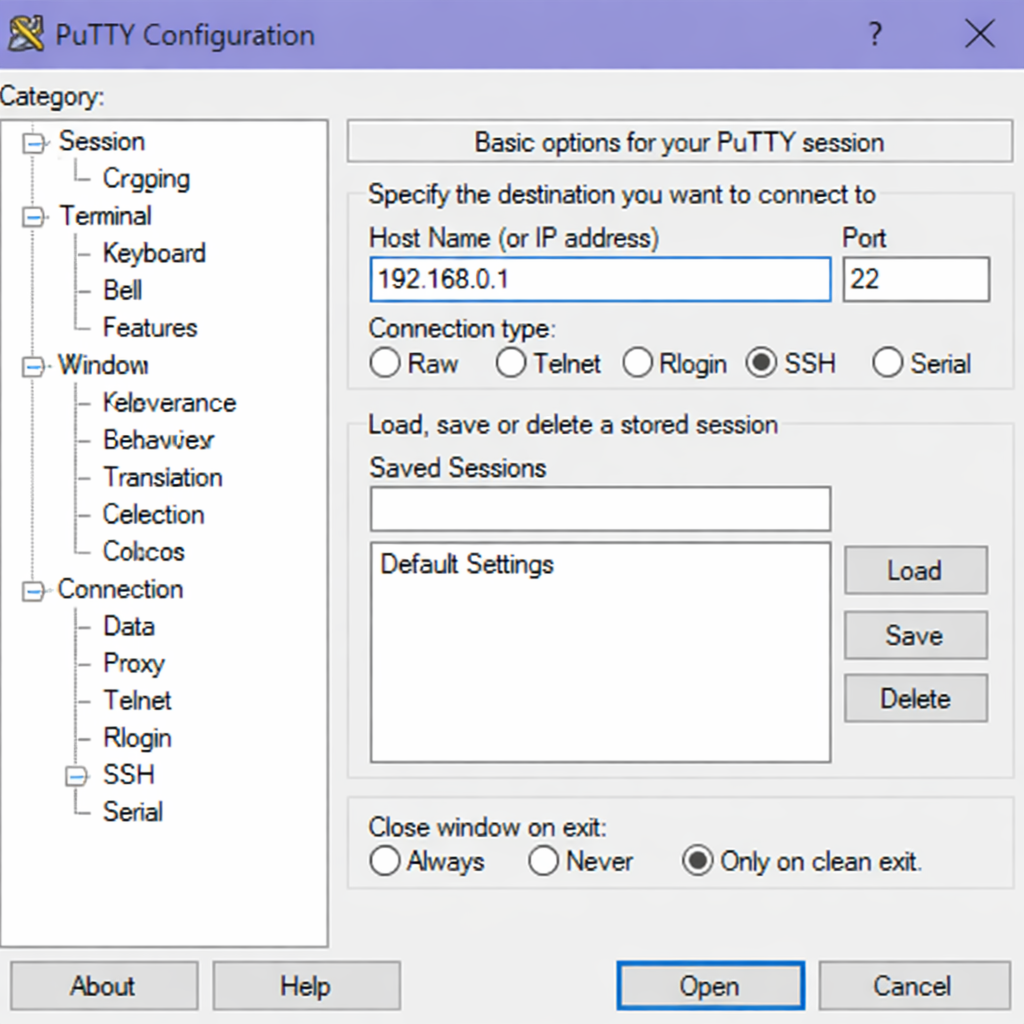
Connect to your server through SSH, replace
192.168.0.1with your VPS public IP address..-
Use PuTTY to connect to your VPS .
-
Run the following command in your shell.
console$ ssh username@192.168.0.1
-
-
Create a non-root user with sudo privileges. Read our guide on How to Create a Non-Root Sudo User on Ubuntu 24.04. You'll use this user's account to run the commands in this guide.
Update System Package Information
Before installing any new software, refresh your system's package index to ensure you get the latest available versions from the Ubuntu repositories.
-
Update the package list from all configured repositories.
console$ sudo apt updateOutput:
Hit:1 http://archive.ubuntu.com/ubuntu noble InRelease
Get:2 http://archive.ubuntu.com/ubuntu noble-updates InRelease
Get:3 http://archive.ubuntu.com/ubuntu noble-security InRelease
Reading package lists... Done
Install Required Dependencies
The NodeSource installation script requires curl to download the setup script and ca-certificates to verify SSL certificates securely.
-
Install
curlandca-certificatesusing the package manager.console$ sudo apt install -y curl ca-certificatesOutput:
Reading package lists... Done
Building dependency tree... Done
Reading state information... Done
curl is already the newest version (8.5.0-2ubuntu2).
ca-certificates is already the newest version (20240203).
0 upgraded, 0 newly installed, 0 to remove and 0 not upgraded.
Add NodeSource Repository
NodeSource provides up-to-date Node.js binaries that are not always available in the default Ubuntu repositories. The official NodeSource setup script configures your system to pull Node.js version 24.x packages.
-
Download and execute the NodeSource setup script for Node.js version 24.x.
console$ curl -fsSL https://deb.nodesource.com/setup_24.x | sudo -E bash -Output:
consoleInstalling the NodeSource Node.js 24.x repo... + sudo install -o root -g root -m 644 /tmp/tmp.XxYz1234/nodesource.gpg.key /usr/share/keyrings/nodesource.gpg + sudo sh -c 'echo "deb [signed-by=/usr/share/keyrings/nodesource.gpg] https://deb.nodesource.com/node_24.x noble main" > /etc/apt/sources.list.d/nodesource.list' + sudo apt-get update Run `sudo apt-get install nodejs` to install Node.js 24.x and npm
Install Node.js and NPM
After adding the NodeSource repository, you can install Node.js, which automatically includes NPM as part of the package.
-
Install the
nodejspackage from the newly added NodeSource repository.console$ sudo apt install -y nodejsOutput:
Reading package lists... Done
Building dependency tree... Done
Reading state information... Done
The following NEW packages will be installed:
  nodejs
0 upgraded, 1 newly installed, 0 to remove and 0 not upgraded.
Need to get 31.2 MB of archives.
After this operation, 184 MB of additional disk space will be used.
Get:1 https://deb.nodesource.com/node_24.x noble/main amd64 nodejs amd64 24.0.0-1nodesource1 [31.2 MB]
Verify Node.js and NPM Installation
Confirm that both Node.js and NPM installed correctly and check their versions to ensure you have the expected releases.
-
Check the Node.js version.
console$ node --versionOutput:
v24.14.1 -
Pull the latest NPM version.
console$ sudo npm install -g npm@latest -
Check the NPM version.
console$ npm --versionOutput:
11.11.0
Create a Test JavaScript Application
To validate that your Node.js environment works correctly, create a simple HTTP server that responds with a welcome message when accessed.
-
Create a new
server.jsfile using the nano text editor.console$ nano server.js -
Add the following JavaScript code to create a basic HTTP server.
JavaScriptconst http = require('http'); const hostname = 'localhost'; const port = 3000; const server = http.createServer((req, res) => { res.statusCode = 200; res.setHeader('Content-Type', 'text/plain'); res.end('Node.js is running successfully on Ubuntu 26.04\n'); }); server.listen(port, hostname, () => { console.log(`Server running at http://${hostname}:${port}/`); }); -
Save and close the
server.jsfile by pressing Ctrl + X, Y then Enter. -
Run the Node.js HTTP server.
console$ node server.jsOutput:
Server running at http://localhost:3000/
Press Ctrl + C to stop the server.
Manage Global NPM Package Permissions
When you install NPM packages globally using npm install -g, NPM writes files to system directories that require elevated permissions. To avoid using sudo with NPM, change the default global package directory to a location within your home folder.
-
Create a new directory for global NPM packages.
console$ mkdir ~/.npm-global -
Configure NPM to use the new directory as the global package installation prefix.
console$ npm config set prefix '~/.npm-global' -
Open your shell's configuration file to add the new directory to your system PATH.
console$ nano ~/.bashrc -
Add the following line at the end of the file.
export PATH=~/.npm-global/bin:$PATH -
Save and close the
~/.bashrcfile by pressing Ctrl + X, Y then Enter. -
Reload the shell configuration to apply the PATH changes.
console$ source ~/.bashrc
Install a Global NPM Package as a Test
Test your NPM configuration by installing a popular global package that helps manage Node.js processes.
-
Install the
nodemonutility globally. This tool automatically restarts your Node.js application when you save file changes, streamlining the development process.console$ npm install -g nodemonOutput:
added 28 packages in 5s -
Verify that
nodemoninstalled correctly and is available in your PATH.console$ nodemon --versionOutput:
3.1.14
Your Node.js and NPM installation is ready for development.
Conclusion
In this guide, you have installed Node.js version 24.x and NPM on Ubuntu 26.04 using the official NodeSource repository, verified the installation, created and ran a test HTTP server, and configured global NPM package permissions. Now that you have Node.js and NPM running, consider building your first Express.js web application or explore the NPM registry to discover packages that accelerate your JavaScript development workflow.
