Author

Francis Ndungu
On this Page
How to Install Docker and Docker Compose on Ubuntu 26.04
Published: Last updated:
Introduction
Docker is an open-source platform that automates the deployment of applications inside lightweight, portable containers. Containers package software with all its dependencies, libraries, and configuration files, ensuring the application runs consistently across different computing environments. Unlike traditional virtual machines, containers share the host system's kernel, making them faster and more resource-efficient. Developers and system administrators use Docker to streamline development workflows, simplify application deployment, and achieve better scalability. The Docker ecosystem includes Docker Engine, which runs and manages containers, and Docker Compose, a tool for defining and running multi-container applications.
This guide walks you through installing Docker and Docker Compose on Ubuntu 26.04, pulling test containers, and managing your container environment.
Prerequisites
Before you start:
- Purchase an Ubuntu 26.04 VPS (Virtual Private Server) . If you don't have an Ubuntu VPS, sign up with Vultr and get upto $300 worth of free credit to test the Vultr platform.
-
Connect to your server through SSH, replace
192.168.0.1with your VPS public IP address..-
Use PuTTY to connect to your VPS .
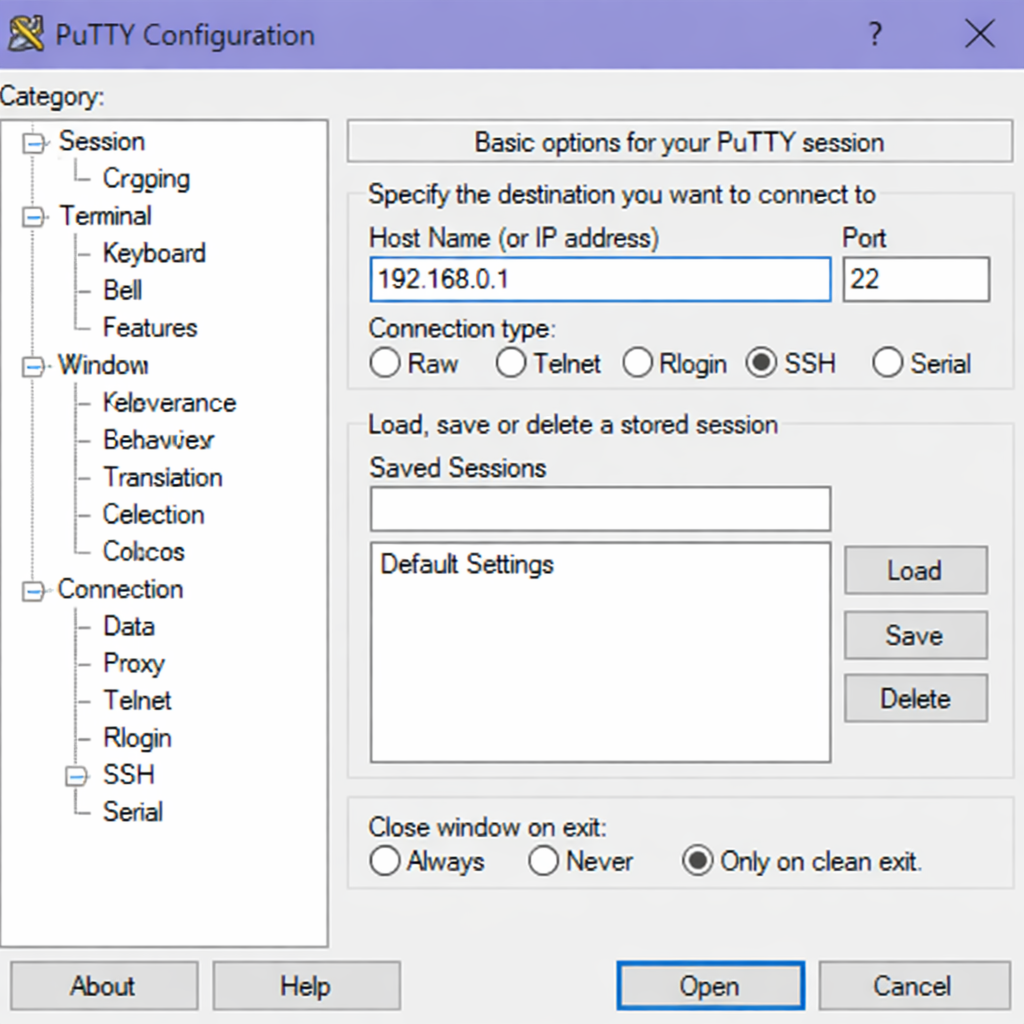
-
Run the following command in your shell.
console$ ssh username@192.168.0.1
-
-
Create a non-root user with sudo privileges. Read our guide on How to Create a Non-Root Sudo User on Ubuntu 24.04. You'll use this user's account to run the commands in this guide.
Install Docker Engine
Docker provides an official repository that contains the latest stable version of Docker Engine. Installing from this repository ensures you receive timely security updates and new features.
-
Keep your system is up to date.
console$ sudo apt update && sudo apt dist-upgrade -
Install dependency packages that allow
aptto use repositories over HTTPS.console$ sudo apt install -y ca-certificates curl -
Create the directory for storing GPG (GNU Privacy Guard) keys.
console$ sudo install -m 0755 -d /etc/apt/keyrings -
Download Docker's official GPG key to verify package authenticity.
console$ sudo curl -fsSL https://download.docker.com/linux/ubuntu/gpg -o /etc/apt/keyrings/docker.asc -
Set the correct permissions for the GPG key file.
console$ sudo chmod a+r /etc/apt/keyrings/docker.asc -
Add the Docker repository to your system's software sources.
console$ echo "deb [arch=$(dpkg --print-architecture) signed-by=/etc/apt/keyrings/docker.asc] https://download.docker.com/linux/ubuntu $(. /etc/os-release && echo "$VERSION_CODENAME") stable" | sudo tee /etc/apt/sources.list.d/docker.list > /dev/null -
Refresh the package list to include Docker packages from the new repository.
console$ sudo apt update -
Install Docker Engine, the container runtime, and the command-line interface.
console$ sudo apt install -y docker-ce docker-ce-cli containerd.io docker-buildx-plugin docker-compose-pluginOutput:
Reading package lists... Done Building dependency tree... Done Reading state information... Done The following NEW packages will be installed: containerd.io docker-buildx-plugin docker-ce docker-ce-cli docker-compose-plugin 0 upgraded, 5 newly installed, 0 to remove and 0 not upgraded. Need to get 112 MB of archives. After this operation, 415 MB of additional disk space will be used. -
Verify the Docker version.
console$ docker --versionOutput:
Docker version 29.4.1, build 055a478
Manage Docker Service
Docker runs as a system service on Ubuntu under the name docker. Managing this service properly ensures your containers run reliably and your Docker daemon starts automatically when the system boots.
Check Docker Service Status
$ sudo systemctl status docker
Output:
● docker.service - Docker Application Container Engine
     Loaded: loaded (/usr/lib/systemd/system/docker.service; enabled; preset: enabled)
     Active: active (running) since Tue 2026-04-28 10:15:23 UTC; 5min 12s ago
   Main PID: 2145 (dockerd)
      Tasks: 8
     Memory: 38.2M
        CPU: 1.234s
     CGroup: /system.slice/docker.service
             └─2145 /usr/bin/dockerd -H fd:// --containerd=/run/containerd/containerd.sock
Press Ctrl + C to return to the shell prompt.
Enable Docker to Start on Boot
$ sudo systemctl enable docker
Output:
Synchronizing state of docker.service with SysV service script with /usr/lib/systemd/systemd-sysv-install.
Executing: /usr/lib/systemd/systemd-sysv-install enable docker
Start Docker Service
$ sudo systemctl start docker
Stop Docker Service
$ sudo systemctl stop docker
Restart Docker Service
$ sudo systemctl restart docker
Add Non-Root User to Docker Group
By default, only users with root privileges or members of the docker group can run Docker commands. Adding your non-root user to this group eliminates the need to prefix every Docker command with sudo.
-
Add your non-root user to the
dockergroup.console$ sudo usermod -aG docker $USER -
Stop your active SSH connection and reconnect to your server to verify the group membership.
console$ groupsOutput:
your_username sudo users docker -
Ensure you can run Docker commands without
sudo.console$ docker psOutput:
CONTAINER ID IMAGE COMMAND CREATED STATUS PORTS NAMES
Install Docker Compose
Docker Compose is a tool that defines and runs multi-container Docker applications using a YAML configuration file. With Docker Compose, you can start multiple interconnected services with a single command instead of running separate docker run commands for each container.
Docker Compose comes bundled as a plugin with the Docker installation you already performed. Verify its availability.
-
Check the Docker Compose version.
console$ docker compose versionOutput:
Docker Compose version v5.1.3
Pull and Run Sample Containers
This section demonstrates pulling container images from Docker Hub, Docker's official registry, and running them on your system.
Pull and Run a Hello World Container
The hello-world container is an official test image that verifies Docker works correctly on your system.
-
Pull the
hello-worldimage from Docker Hub.console$ docker pull hello-worldOutput:
Using default tag: latest latest: Pulling from library/hello-world c1ec31eb5944: Pull complete Digest: sha256:1408fec50309afee38f3535383f5d094d3827b5f1c5a4dd1c1e06cc2d2c6f5a8 Status: Downloaded newer image for hello-world:latest docker.io/library/hello-world:latest -
Run the
hello-worldcontainer.console$ docker run hello-worldOutput:
Hello from Docker!
This message shows that your installation appears to be working correctly.

To generate this message, Docker took the following steps:
 1. The Docker client contacted the Docker daemon.
 2. The Docker daemon pulled the "hello-world" image from the Docker Hub.
 3. The Docker daemon created a new container from that image.
 4. The Docker daemon ran the executable that produced the output you are currently reading.
 5. The Docker daemon streamed the output to the Docker client, which sent it to your terminal.
Pull and Run a PostgreSQL Container
Running PostgreSQL in a container provides an isolated database environment without installing the database directly on your host system.
-
Pull the official PostgreSQL image from Docker Hub.
console$ docker pull postgres:latestOutput:
latest: Pulling from library/postgres 1b7a6b8f6b3a: Pull complete 2a3c4d5e6f7g: Pull complete 3b4c5d6e7f8g: Pull complete Digest: sha256:abcdef1234567890abcdef1234567890abcdef1234567890abcdef1234567890 Status: Downloaded newer image for postgres:latest docker.io/library/postgres:latest -
Create a new directory for persistent PostgreSQL data.
console$ mkdir -p ~/postgres_data -
Run the PostgreSQL container with a password and persistent storage.
console$ docker run -d \ --name postgres-demo \ -e POSTGRES_PASSWORD=your_strong_password \ -e POSTGRES_USER=demo_user \ -e POSTGRES_DB=demo_db \ -v ~/postgres_data:/var/lib/postgresql/data \ -p 5432:5432 \ postgres:latestOutput:
7a8b9c0d1e2f3a4b5c6d7e8f9a0b1c2d3e4f5a6b7c8d9e0f1a2b3c4d5e6f7a8b
Pull and Run a MySQL Container
MySQL is another popular relational database that runs efficiently inside a Docker container.
-
Pull the official MySQL image from Docker Hub.
console$ docker pull mysql:latestOutput:
latest: Pulling from library/mysql 4a5b6c7d8e9f: Pull complete 5b6c7d8e9f0a: Pull complete 6c7d8e9f0a1b: Pull complete Digest: sha256:fedcba0987654321fedcba0987654321fedcba0987654321fedcba0987654321 Status: Downloaded newer image for mysql:latest docker.io/library/mysql:latest -
Create a directory for MySQL persistent storage.
console$ mkdir -p ~/mysql_data -
Run the MySQL container with root password and persistent volume.
console$ docker run -d \ --name mysql-demo \ -e MYSQL_ROOT_PASSWORD=your_strong_password \ -e MYSQL_DATABASE=app_db \ -e MYSQL_USER=app_user \ -e MYSQL_PASSWORD=userpassword123 \ -v ~/mysql_data:/var/lib/mysql \ -p 3306:3306 \ mysql:latestOutput:
8b7c6d5e4f3a2b1c0d9e8f7a6b5c4d3e2f1a0b9c8d7e6f5a4b3c2d1e0f9a8b7c
Essential Docker Commands
Managing containers requires familiarizing yourself with common Docker commands. This section covers the most common commands for container management.
List Running Containers
View all containers that are currently active on your system.
$ docker ps
Output:
CONTAINER ID   IMAGE         COMMAND                  CREATED         STATUS         PORTS                    NAMES
7a8b9c0d1e2f   postgres:18   "docker-entrypoint.s…"   5 minutes ago   Up 5 minutes   0.0.0.0:5432->5432/tcp   postgres-demo
8b7c6d5e4f3a   mysql:8.0     "docker-entrypoint.s…"   2 minutes ago   Up 2 minutes   0.0.0.0:3306->3306/tcp   mysql-demo
List All Containers Including Stopped Ones
Show every container on your system, regardless of its current state.
$ docker ps -a
Output:
CONTAINER ID   IMAGE           COMMAND                  CREATED          STATUS                      PORTS                    NAMES
7a8b9c0d1e2f   postgres:16     "docker-entrypoint.s…"   5 minutes ago    Up 5 minutes                0.0.0.0:5432->5432/tcp   postgres-demo
8b7c6d5e4f3a   mysql:8.0       "docker-entrypoint.s…"   2 minutes ago    Up 2 minutes                0.0.0.0:3306->3306/tcp   mysql-demo
f1e2d3c4b5a6   hello-world     "/hello"                 10 minutes ago   Exited (0) 10 minutes ago                            gallant_curie
Stop a Running Container
Gracefully stop a container by sending a SIGTERM signal to its main process.
$ docker stop postgres-demo
Output:
postgres-demo
Start a Stopped Container
Restart a container that has previously been stopped.
$ docker start postgres-demo
Output:
postgres-demo
Remove a Container
Delete a container permanently. You cannot recover a container after removal.
$ docker rm mysql-demo
Output:
mysql-demo
List Docker Images
View all container images downloaded on your system.
$ docker images
Output:
REPOSITORY     TAG       IMAGE ID       CREATED       SIZE
postgres       16        abc123def456   2 weeks ago   423MB
mysql          8.0       def456ghi789   3 weeks ago   578MB
hello-world    latest    ghi789jkl012   2 months ago  9.14kB
Remove an Image
Delete an image from your local storage. You must remove any containers using the image first.
$ docker rmi hello-world
Output:
Untagged: hello-world:latest
Untagged: hello-world@sha256:1408fec50309afee38f3535383f5d094d3827b5f1c5a4dd1c1e06cc2d2c6f5a8
Deleted: sha256:ghi789jkl012
View Container Logs
Display the standard output and error logs from a running or stopped container.
$ docker logs postgres-demo
Output:
2026-04-28 10:20:15.123 UTC [1] LOG:  starting PostgreSQL 18.0 on x86_64-pc-linux-gnu
2026-04-28 10:20:15.124 UTC [1] LOG:  listening on IPv4 address "0.0.0.0", port 5432
2026-04-28 10:20:15.125 UTC [1] LOG:  database system is ready to accept connections
Execute Commands Inside a Running Container
Run a command interactively inside an active container. This example opens a PostgreSQL command-line interface.
$ docker exec -it postgres-demo psql -U demo_user -d demo_db
Output:
psql (18.0)
Type "help" for help.

demo_db=# \q
Clean Up Test Containers
Remove the test containers and images you created to free up system resources.
-
Stop the PostgreSQL container.
console$ docker stop postgres-demo -
Remove the PostgreSQL container.
console$ docker rm postgres-demo -
Remove the PostgreSQL image.
console$ docker rmi postgres:16 -
Remove the MySQL image if you no longer need it.
console$ docker rmi mysql:8.0 -
Remove the hello-world image.
console$ docker rmi hello-world
Conclusion
In this guide, you have installed Docker Engine and Docker Compose on Ubuntu 26.04 using Docker's official repository, added your non-root user to the docker group for seamless command execution, and pulled and ran hello-world, PostgreSQL, and MySQL containers. You also explored essential Docker commands for managing containers, images, logs, and executing commands inside running containers. Now that you have Docker running, consider learning how to create custom Docker images using a Dockerfile or explore Docker Compose to define and run multi-container applications like a web server connected to a database.
